
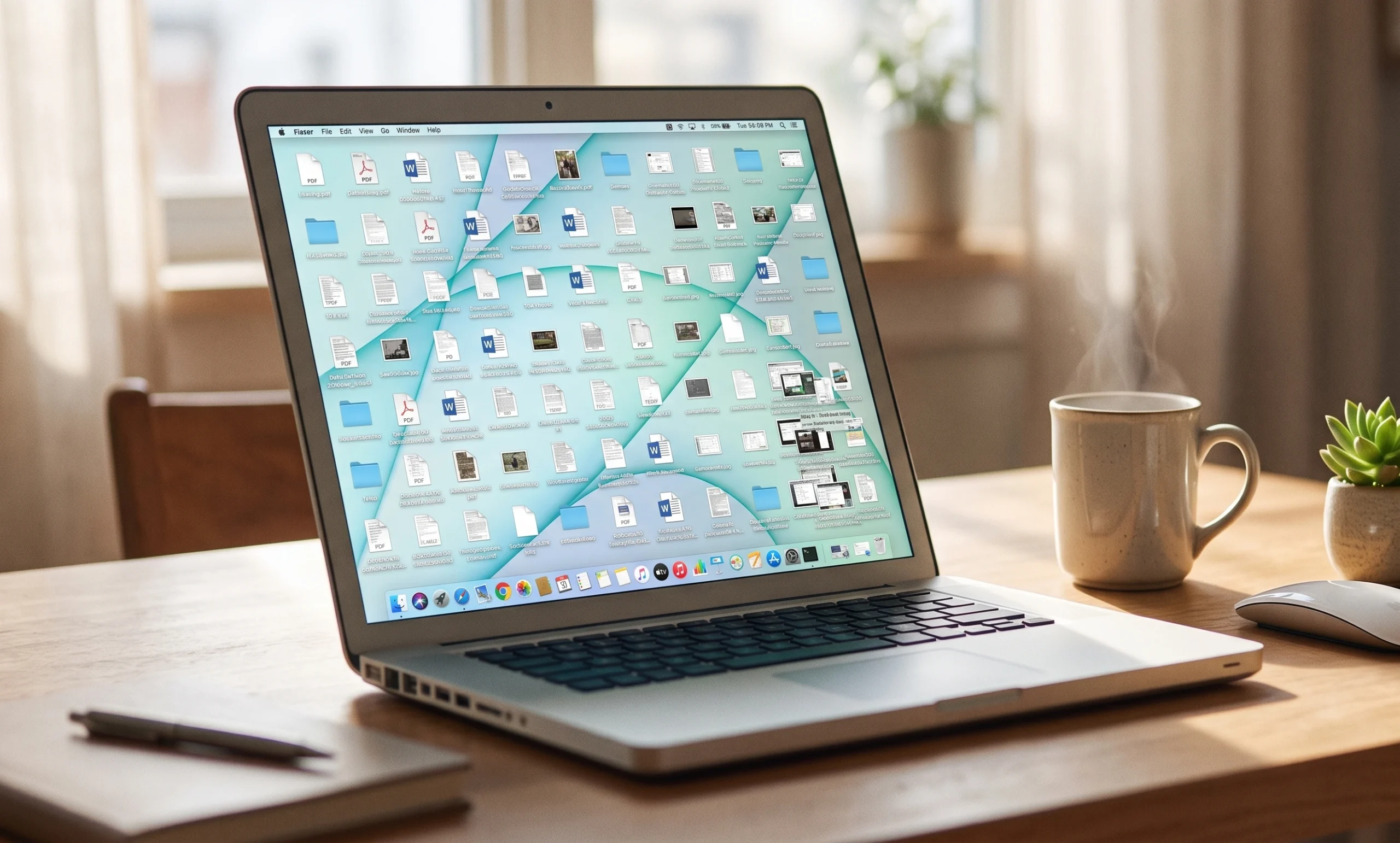
The fastest way to spend $1,200 (and a lot more) is to assume your sluggish Mac has reached the end of its life.
Every week, I speak with clients who are convinced their five-, seven-, or eight-year-old Mac is ready for the recycling bin.
The symptoms are familiar: the spinning beach ball appears during simple clicks, web pages hesitate before loading, and switching between programs takes seconds instead of milliseconds.
The natural instinct is to think the machine is simply too old to keep up.
In reality, hardware rarely ages that way. The aluminum chassis, high-resolution Retina display, and core processor inside an older Mac are built to last a decade or more.
If your Mac handled your email, family photos, taxes, and web browsing smoothly four years ago, the physical hardware is still capable of handling those exact same tasks today.
What changes over time isn’t the hardware—it might be the digital baggage that accumulates silently on the drive.
The Invisible Drag on macOS
When a Mac begins to drag/slow, it is almost never due to physical wear and tear. Instead, performance drops because the operating system is suffocating under invisible maintenance debt:
Startup App Creep: Every time an application or printer driver installs, it often quietly gives itself permission to launch the moment the computer starts up. Over years of use, dozens of these utilities run invisibly in the background, consuming processing bandwidth and memory before you even open a browser.
Graphic Overhead: Apple continues to polish macOS with subtle design flourishes—frosted-glass windows, see-through menu bars, and sliding dock animations. Newer computers handle those effects effortlessly, but on older graphics processors, rendering translucent windows consumes valuable power that should go toward your active work.
Drive Suffocation: Solid-state storage needs open breathing room to operate efficiently. When a hard drive fills past 80% capacity, macOS loses the scratch space required to swap virtual memory and juggle temporary system tasks, bringing daily performance to an absolute crawl.
Continuous Uptime: Putting a laptop to sleep by closing the lid is convenient, but running without a true reboot for weeks allows stale background processes and memory leaks to pile up.
Tune It Up Before You Trade It In
You may not need a trip to the store for a costly replacement to restore more snappy, out-of-the-box responsiveness.
A few focused system adjustments will strip away background clutter, reclaim processing headroom, and keep your familiar setup running smoothly for years to come.
To walk you through the process step-by-step, here’s our Mac Tune-Up Guide: 7 Practical Checks Before You Assume an Older Mac Needs Replacing.
It outlines the exact locations in System Settings and Utilities to clear bloated caches, trim background login items, reduce graphic strain, and free up vital storage space.
Senior Tech Tutor Marin offers one-on-one, jargon-free help with iPhones, iPads, Macs, email accounts, passwords protection, photo organization, online accounts, and so much more. Our pricing starts at only $50.
Tech tutoring for seniors, by a senior.